
In this blog post, I will share on how to install Nutanix CE 2.0 into the Intel NUC. We are going to build a 3 node Nutanix cluster and we will need to install Nutanix CE 2.0 manually into each and every node. We will need the following
- Intel NUC
- Nutanix Installer
- Network Cable
We will need to configure the following IP addresses
| Node | Host IP | CVM IP | Subnet Mask | Gateway |
|---|---|---|---|---|
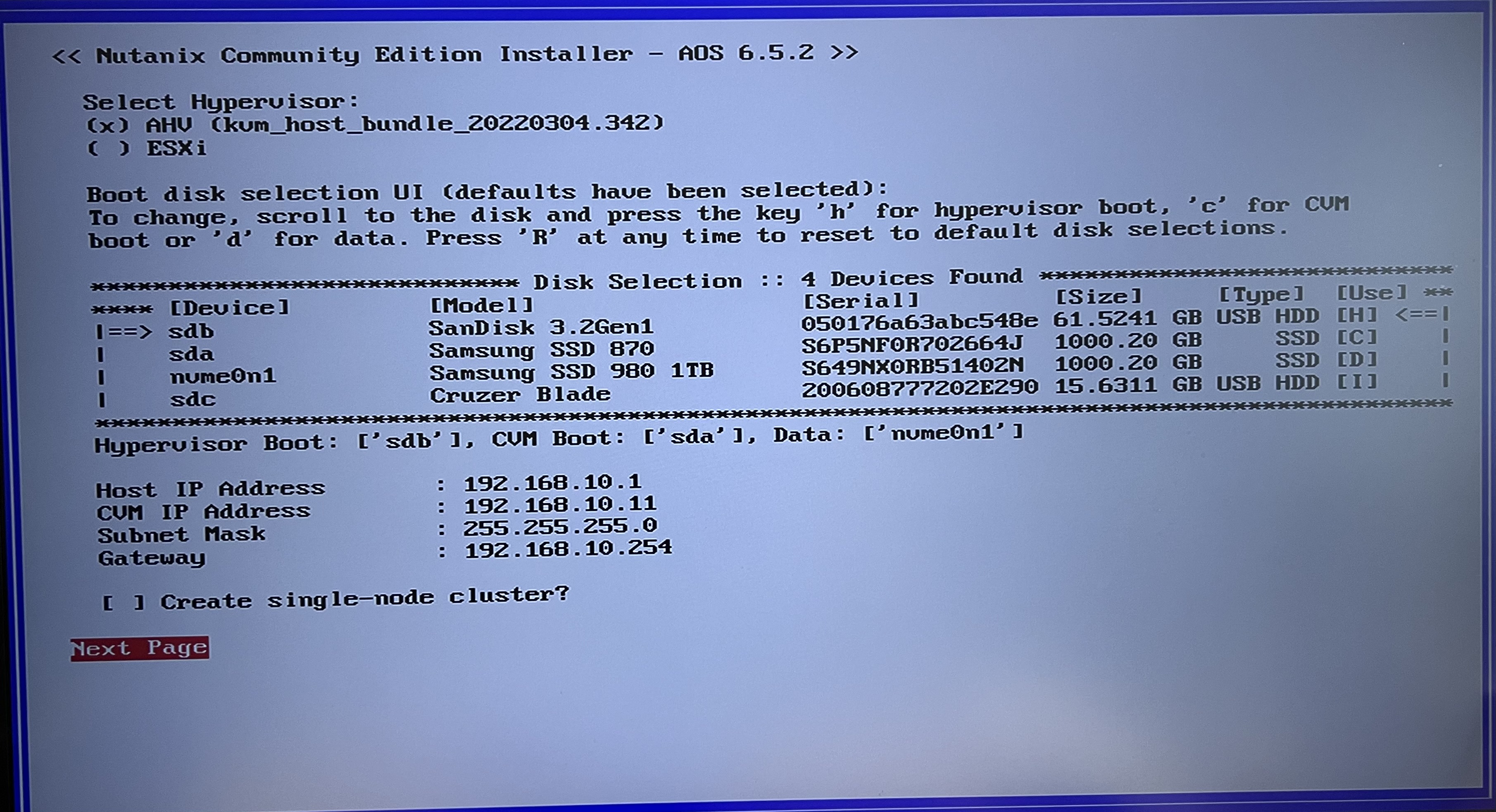
| Node 1 | 192.168.10.1 | 192.168.10.11 | 255.255.255.0 | 192.168.10.254 |
| Node 2 | 192.168.10.2 | 192.168.10.12 | 255.255.255.0 | 192.168.10.254 |
| Node 3 | 192.168.10.3 | 192.168.10.13 | 255.255.255.0 | 192.168.10.254 |
Step 1: Connect Intel NUC’s ethernet port into “Port 1” of the TP-Link ethernet switch.
Step 2: Connect the “Nutanix Installer” USB thumb drive into the front port of the Intel NUC and power on the NUC
Step 3: Press “F10” and boot into the USB thumb drive
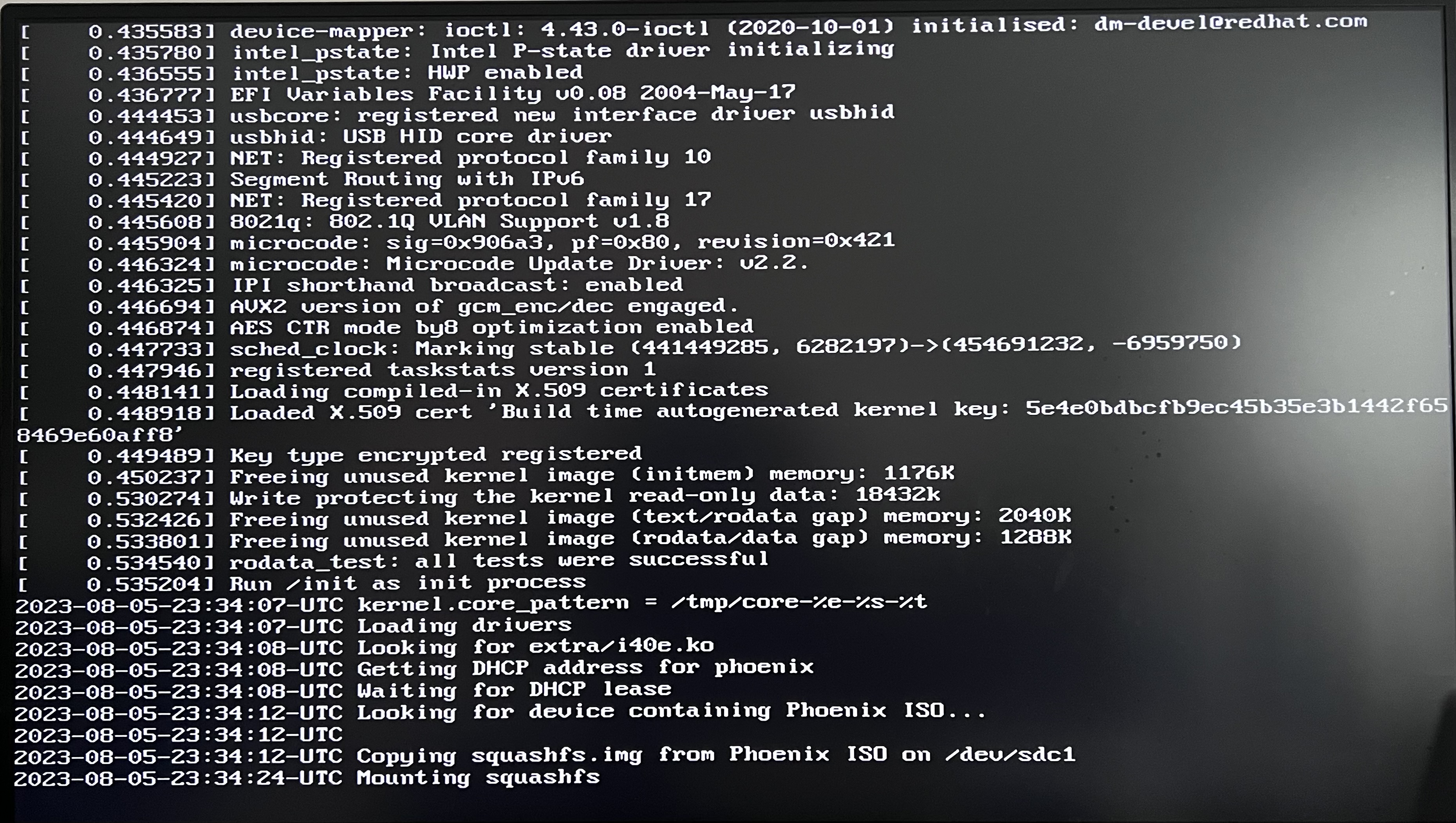
Step 4: Wait for the thumb drive to boot and you will see an error screen stating some “list index out of range” and you will see a bash input screen that shows “[root@phoenix ~]#”. This is because Intel NUC’s network interface card (NIC) driver is not found in Nutanix CE binary.
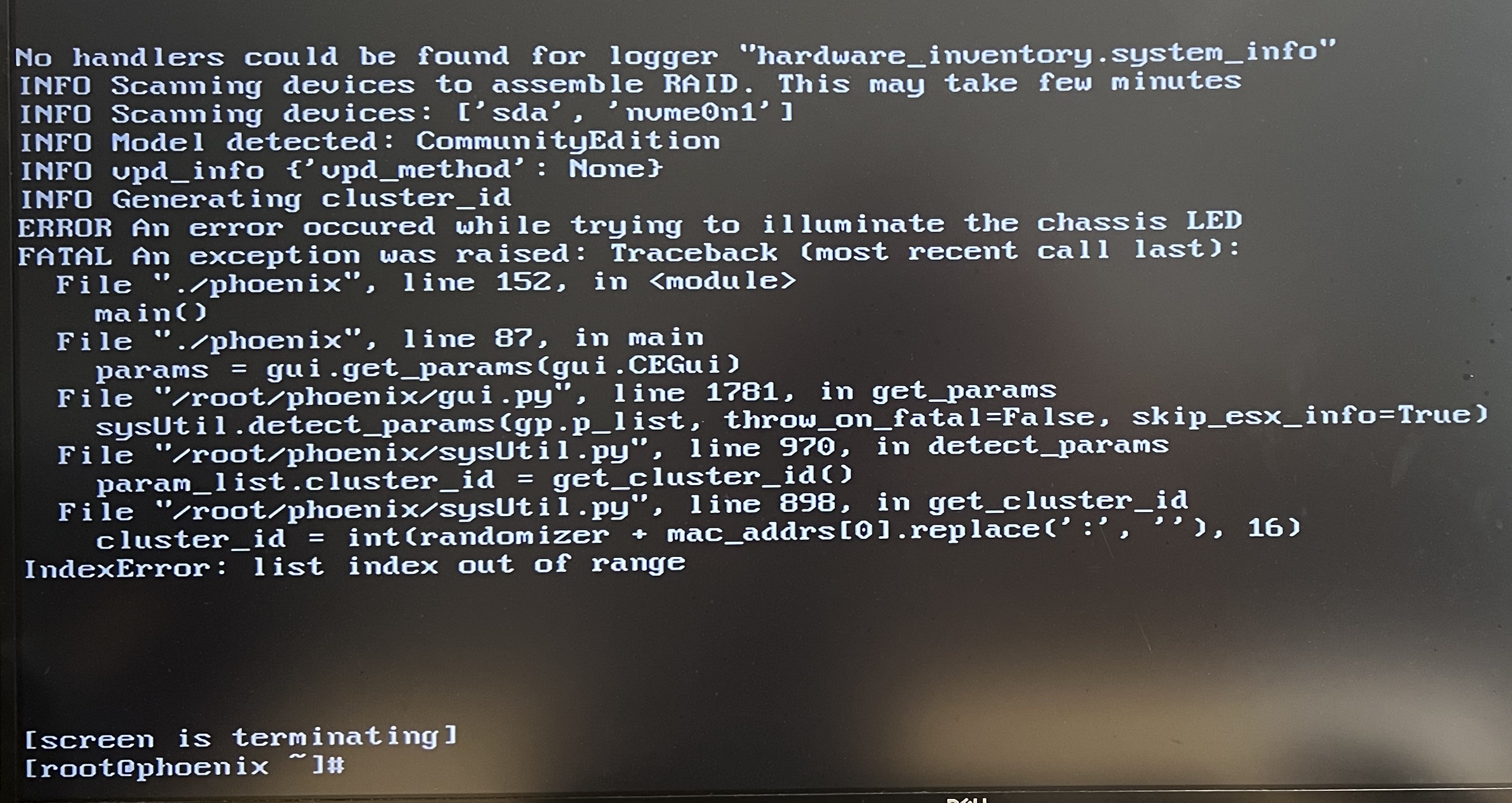
Step 5: Let’s load the custom NIC driver by running the following commands. In this lab, the Nutanix USB installer is mounted as /dev/sdc1. So we will run the following command to mount the Nutanix USB installer to a default mount point
mount /dev/sdc1 /mntStep 6: Remove the old NIC driver
rmmod igcStep 7: Load the patched NIC driver
insmod /mnt/igc-patched.koStep 8: Unmount the Nutanix USB Installer
umount /mntStep 9: Re-run the Nutanix Installer
./ce_installer && screen -rStep 10: The network driver will load and you will see the following screen
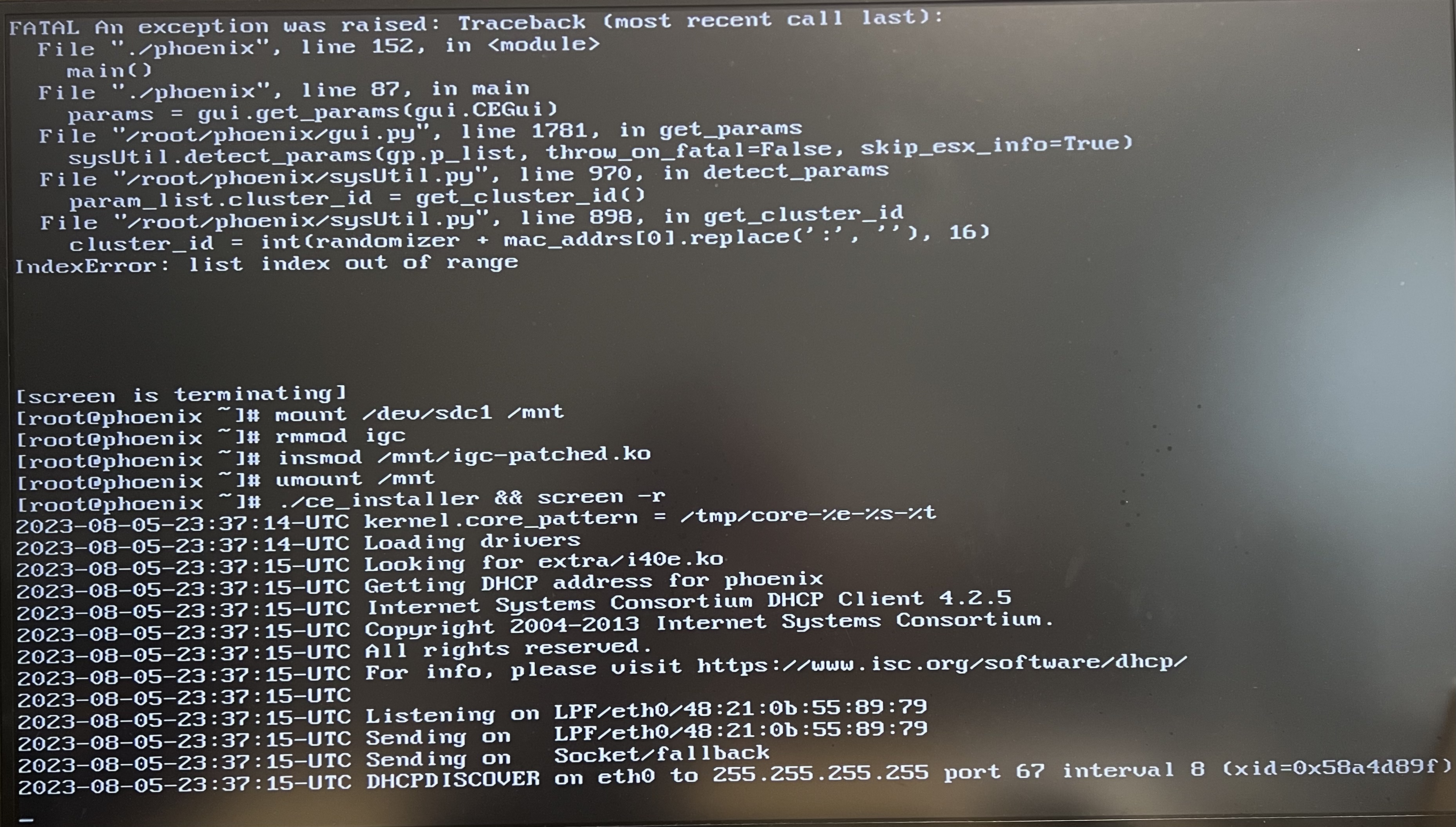
Step 11: The installer will take several minutes to load and you will see the following screen
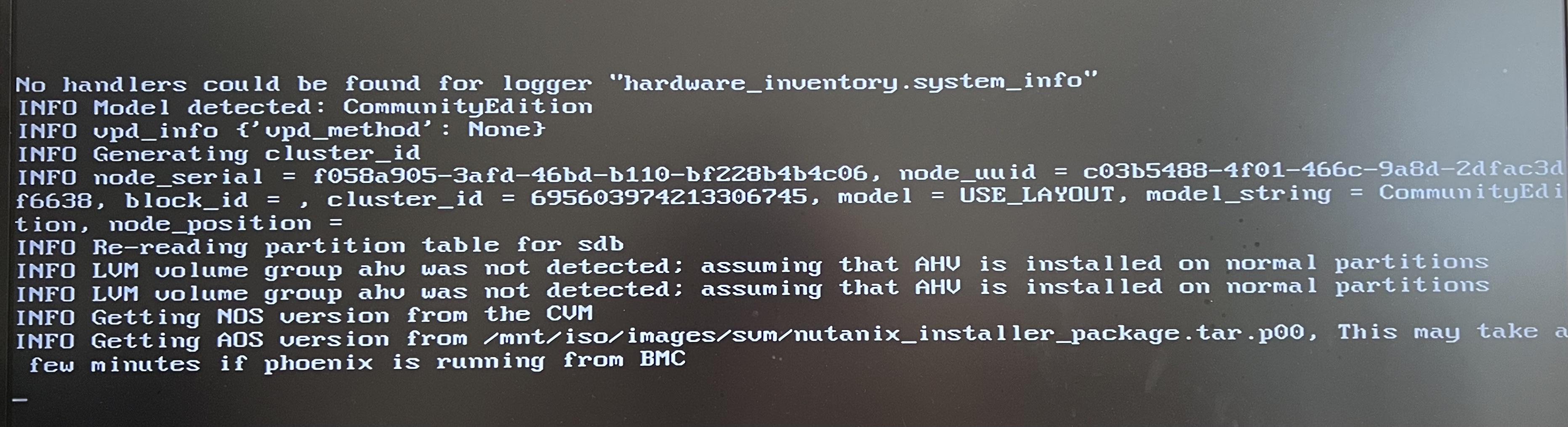
Step 12: Once the installer is fully loaded, you should see the screen below
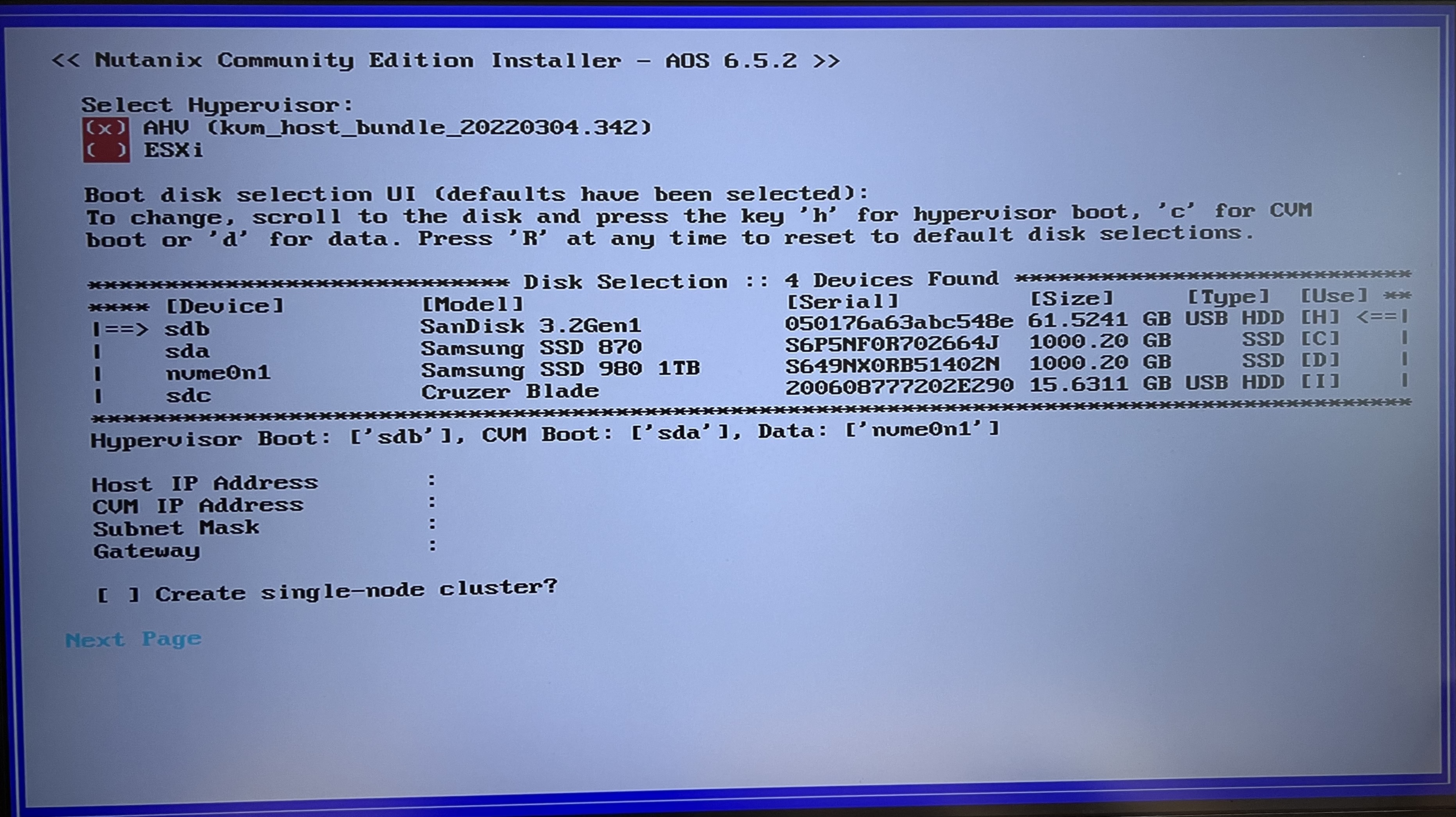
Step 13: We will choose the hypervisor as AHV and assign the following hard drive accordingly
- Hypervisor Boot —> 64GB USB
- CVM Boot —> 1TB SSD
- Data —> 1TB NVME
Step 14: Let’s enter the IP address for the 1st Nutanix node as stipulated in the “Nutanix IP Address List” table above, ensure the “Create single-node cluster” option is not selected and click “Next Page”.
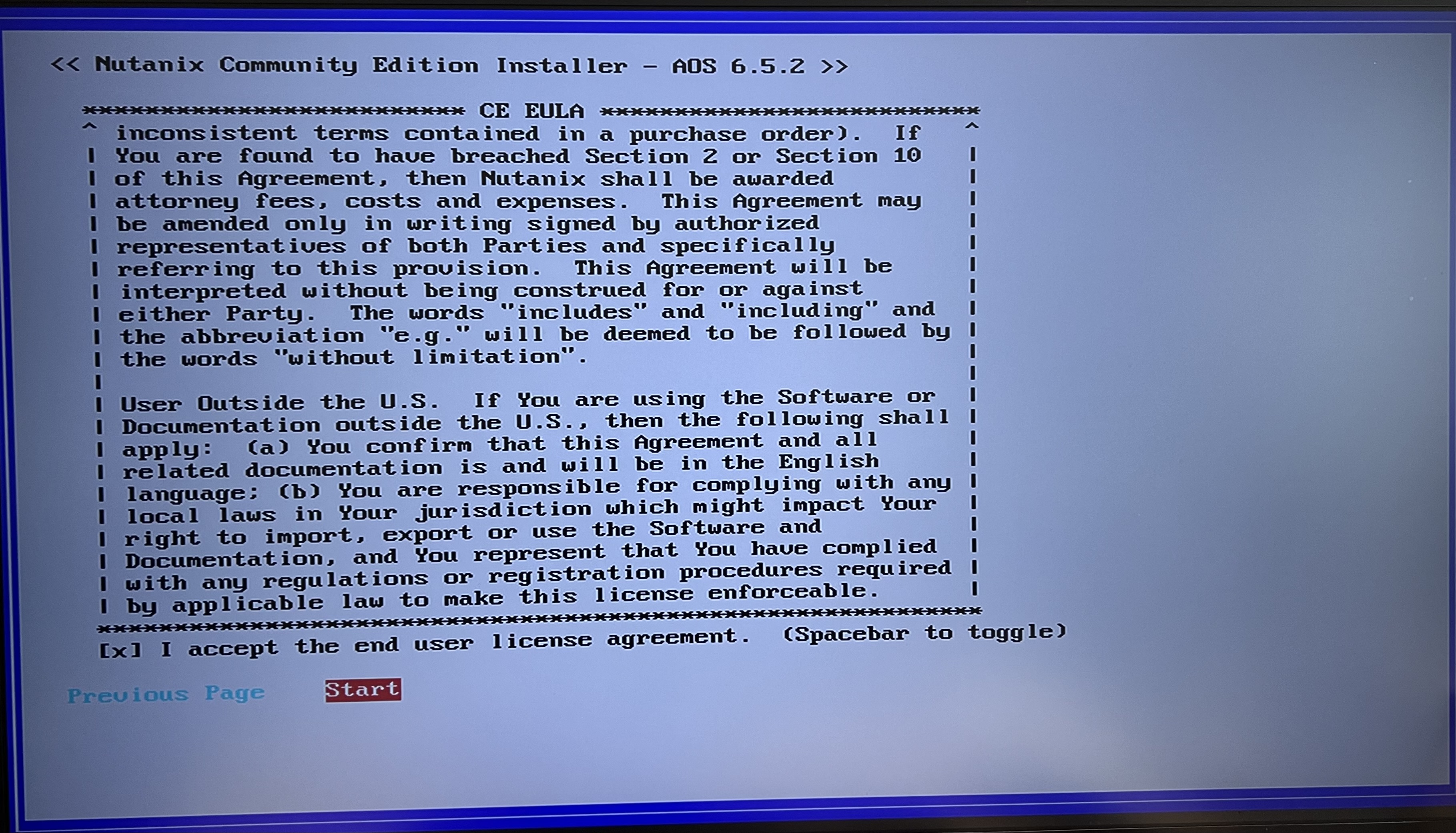
Step 15: Scroll down the EULA before selecting “I accept the end user license agreement”. After that, tab to “Start”
Step 16: The installation will take a while and you should see the following screen when it’s installed successfully. Remember to plug out the thumb drive before keying “Y” and hitting the “Enter” key.

Step 17: Repeat all the above 16 steps for the other 2 Intel NUC except for Step 1, where
- Node 2 should plug into Port 2 of the TP-Link switch
- Node 3 should plug into Port 3 of the TP-Link switch
With all the 3 nodes installed, we are ready to proceed to the next blog post where I will share on cluster creation procedures.
 Wesnovator Solutions
You must be logged in to post a comment.